I guess there will just be more music discussion done here.
Saturday, August 10, 2013

Wednesday, June 20, 2012
Renoise Tutorial: BREAKS
I'm going to start this tutorial off with saying: I'm not all that great with breaks or breakbeats. I spent a good chunk of time only really using the Amen break, which is what this tutorial will focus on. I'm going to use a tempo of 170 and really turn the amen into a beast of a loop. With that I will explore the different ways to use the Renoise instrument setting and sample editor.
First thing's first: let's get the default template I'm working with. I will have 170 BPM, 8 lines a beat,256 64 lines, 16 lines per tick and -3dB headroom. This is my favourite resolution to work with Renoise on. It's not entirely important that you have the same layout, but it may help in case it gets confusing.

Alright, so now that we have that done, we will take a full Amen break and do some minor adjustments. Here's the sample I used.
So once you have the sample, drag and drop it into your instrument window like this.

Go to your sample editor and now you can see the Amen for all it's glory.

So you'll notice the first thing is that the intro of the loop has a nice instrumental hit at the beginning of the loop. We don't want that because we want a solid drum break with just the drum hits. So we're going to turn our sample cursor resolution to 0 Crossing, meaning the cursor will only drop where the sample crosses the 0 degrees phase. This is important so that we get a nice clean start and not odd snapping at the beginning of the sample. Note where in the sample I am starting the cut.


I am going to cut our now 3 bar sample into two seperate instruments. One will be just the first bar, which I will sequence and loop twice, and the second instrument will be the third and fourth bars. I will focus primarily on the first break now because all the technique can be applied to the second.

Cut this, and paste it into a new instrument.

Now disregard that and follow me into the wonderful world of slicing and instrument editing. Unknown to most people, Renoise has a very powerful sampling engine and a rather unique (unless trackers are old news to you, then you should recognize almost everything) way of creating instruments. They have implemented a really nice Slice feature that is perfect for exactly what I'm talking about, but we're not going to focus on that. I'm going to show you a way I cut and manipulate the actual hits from the break to create a more authentic feeling to the transposed time signature.
If you hadn't noticed, the Amen isn't exactly at 170 BPM. It's more around 134 or so. So what we're going to do is cut the sample up, and place it on different parts of our keyboard.

So we're going to cut out everything but the first hit. Remember to hit cut, and not copy as you want to remove everything but the first kick drum. Once you've cut the sample, click on the new sample button and hit ctrl+v and you will see the rest of your beat fill out. Remember this process, we're going to do it for (almost) all the hits in the loop.

Go to your Sample Keyzones and hit the button that says Drum Kit. This will split all your samples up to each key. As you add new samples, they are added down the keyboard. Now we're going to leave behind one hit, cut the rest, create a new sample, and paste it and repeat.
Hit each key on your keyboard to see how the different hits are starting to sound.
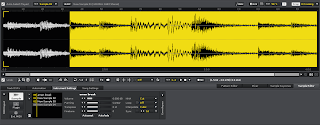
So you're going to get to this part here, which I like to call the shuffle. It's when there's a hihat and a snare shuffling back and forth. I count the shuffle as one hit because it has enormous groove that I don't want to get rid of and because it fits well onto the sequencer when we map this break out.
It's also common practice to name and rename your samples so that you are not confused as to which part of the break is where.

So here I've mapped out and cut all my samples out and they are in their respective key slots.

Now we are going to sequence our first break and it's going to be simple. Look at the screen shot below, see the '4' that's circled? That moved 4 lines down after every note placement. When it's at 4, start at line 00 and just move down the keyboard over and over again. If you don't want to deal with such a long pattern, do what I am doing and make the pattern length 64.
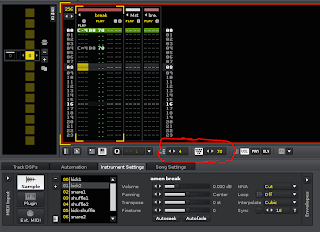

Now listen, you've created a pretty sloppy chopped up Amen break at 170 BPM. Now we're going to take this time to play with the sample editor and really make the break feel 170.
Open up your first kick sample, change the snap to 16 beats. Select the 1.4 marker and delete everything to the right of it.

And then once that is done, hit the fade-out button (or hit ctrl+o) and watch the sample's volume fade to nothing. This is how we're going to make the beat feel 170. Now go ahead and do that to all the samples except the shuffles. They are in for some more manipulation.

If you listen to your pattern now you will notice all the kicks and snares sound clean where as the shuffles are noisy and kind of awkward. What happens is that we have a tempo mismatch and we're going to use our keen slicing and dicing and understanding of music creation to fix that. Open up the first shuffle, turn your snap to 0 Crossing.

So you may notice that the hit of the shuffle is a few milliseconds before the actual start of the sample. We want to change that. We're going to delete anything extra that is in front of the first hit. Once that's deleted we will want to move the snare hit to a tempo appropriate location. Delete the tail of the hihats to achieve this.

So you can see where the start of the snare hit is and the next appropriate beat (the buttom numbers of the sample editor) it 1.2. Now there will be a tail from the snare that exceeds the 1.4 mark, making the sample just a bit longer than we need it to be.

Once that is deleted you will now have a shuffle that is perfectly in time with the tempo and sounds much better. What I'm going to do, just to create a more dramatic shuffling effect is select just the hihat hit and hit the fade out button (again, ctrl+o if you prefer key commands). This will cause the tail of the hihat to end before the snare hit. I will apply the same technique to the snare hit.


Another tip to look for to make sure that you are close to the right tempo with sample is that the HEX at the top of the Sample Editor is for the Sample Offset command (Sxx) you will see that the snare hit sits right at 80, which is exact middle of the sample. Keep that in note as I am going to use the Sxx command to add some flare and uniqueness to the break.
So once you have done the pain staking task of turning all your samples into the tempo-accurate hybrids, listen to your break. It sounds clean! It sounds good! The one issue I have always had with the amen break though, is that double-kick shuffle just before the second snare. It's muddy, it's harsh, and it just sounds like garbage. It should be the shuffle mapped to F. I'm actually going to go through my pattern and remove all the Fs and leave them with a single kick at 58 volume.

Keep this pattern, this will be your go-to pattern for the standard break. Now I want you to clone this pattern and work on some variation. Here's the XML data from my second sequence. Copy all that XML and paste it into Renoise. As you can see it's a small but subtle change.
NOTE: The XML is assuming that your break is instrument 00, as mine is. If you have been following the tutorial, it should be fine. Don't worry, I'll upload the finished file for all to see and understand.
Alright, and here's some more variations for you, just to try out and have fun with.
Now that you have the basics of the break down and you are working on variations, we're going to dig a bit deeper into the instrument settings.

So open up the envelopes tab on your instrument editor. The default one will be volume, and that'll be the only one we play with. So which ever envelopes you add to an instrument, it is applied to all the samples of that instrument. What I want to be able to do is use just the snare or just the hihats from the shuffle. The issue when I trigger the shuffle is that it plays both hats and snare. I want to be able to do an OFF note right after the hihat hit, giving me a nice hat sound to construct beats with. So go ahead, turn the Volume envelope on and make it 7 lines large.


(Some culture for you fools.)
First thing's first: let's get the default template I'm working with. I will have 170 BPM, 8 lines a beat,

Alright, so now that we have that done, we will take a full Amen break and do some minor adjustments. Here's the sample I used.
So once you have the sample, drag and drop it into your instrument window like this.

So you'll notice the first thing is that the intro of the loop has a nice instrumental hit at the beginning of the loop. We don't want that because we want a solid drum break with just the drum hits. So we're going to turn our sample cursor resolution to 0 Crossing, meaning the cursor will only drop where the sample crosses the 0 degrees phase. This is important so that we get a nice clean start and not odd snapping at the beginning of the sample. Note where in the sample I am starting the cut.

So select everything to the left, and hit delete.


Cut this, and paste it into a new instrument.

Now disregard that and follow me into the wonderful world of slicing and instrument editing. Unknown to most people, Renoise has a very powerful sampling engine and a rather unique (unless trackers are old news to you, then you should recognize almost everything) way of creating instruments. They have implemented a really nice Slice feature that is perfect for exactly what I'm talking about, but we're not going to focus on that. I'm going to show you a way I cut and manipulate the actual hits from the break to create a more authentic feeling to the transposed time signature.
If you hadn't noticed, the Amen isn't exactly at 170 BPM. It's more around 134 or so. So what we're going to do is cut the sample up, and place it on different parts of our keyboard.

So we're going to cut out everything but the first hit. Remember to hit cut, and not copy as you want to remove everything but the first kick drum. Once you've cut the sample, click on the new sample button and hit ctrl+v and you will see the rest of your beat fill out. Remember this process, we're going to do it for (almost) all the hits in the loop.

Go to your Sample Keyzones and hit the button that says Drum Kit. This will split all your samples up to each key. As you add new samples, they are added down the keyboard. Now we're going to leave behind one hit, cut the rest, create a new sample, and paste it and repeat.
Hit each key on your keyboard to see how the different hits are starting to sound.

So you're going to get to this part here, which I like to call the shuffle. It's when there's a hihat and a snare shuffling back and forth. I count the shuffle as one hit because it has enormous groove that I don't want to get rid of and because it fits well onto the sequencer when we map this break out.
It's also common practice to name and rename your samples so that you are not confused as to which part of the break is where.

So here I've mapped out and cut all my samples out and they are in their respective key slots.

Now we are going to sequence our first break and it's going to be simple. Look at the screen shot below, see the '4' that's circled? That moved 4 lines down after every note placement. When it's at 4, start at line 00 and just move down the keyboard over and over again. If you don't want to deal with such a long pattern, do what I am doing and make the pattern length 64.
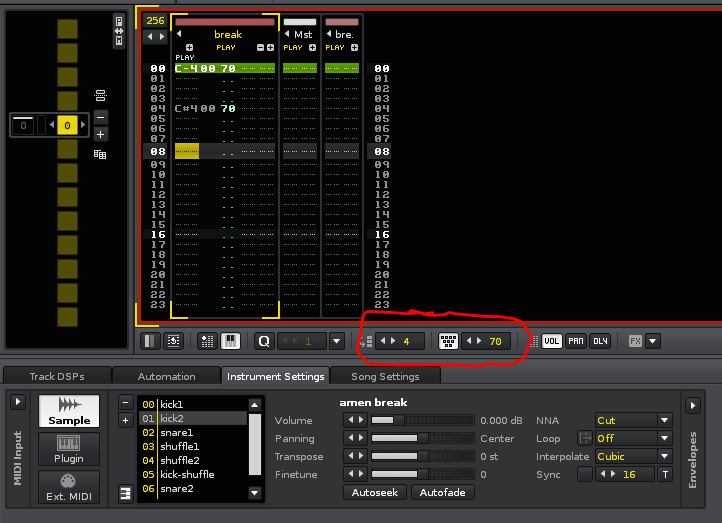

Now listen, you've created a pretty sloppy chopped up Amen break at 170 BPM. Now we're going to take this time to play with the sample editor and really make the break feel 170.
Open up your first kick sample, change the snap to 16 beats. Select the 1.4 marker and delete everything to the right of it.

And then once that is done, hit the fade-out button (or hit ctrl+o) and watch the sample's volume fade to nothing. This is how we're going to make the beat feel 170. Now go ahead and do that to all the samples except the shuffles. They are in for some more manipulation.

If you listen to your pattern now you will notice all the kicks and snares sound clean where as the shuffles are noisy and kind of awkward. What happens is that we have a tempo mismatch and we're going to use our keen slicing and dicing and understanding of music creation to fix that. Open up the first shuffle, turn your snap to 0 Crossing.

So you may notice that the hit of the shuffle is a few milliseconds before the actual start of the sample. We want to change that. We're going to delete anything extra that is in front of the first hit. Once that's deleted we will want to move the snare hit to a tempo appropriate location. Delete the tail of the hihats to achieve this.

So you can see where the start of the snare hit is and the next appropriate beat (the buttom numbers of the sample editor) it 1.2. Now there will be a tail from the snare that exceeds the 1.4 mark, making the sample just a bit longer than we need it to be.

Once that is deleted you will now have a shuffle that is perfectly in time with the tempo and sounds much better. What I'm going to do, just to create a more dramatic shuffling effect is select just the hihat hit and hit the fade out button (again, ctrl+o if you prefer key commands). This will cause the tail of the hihat to end before the snare hit. I will apply the same technique to the snare hit.


Another tip to look for to make sure that you are close to the right tempo with sample is that the HEX at the top of the Sample Editor is for the Sample Offset command (Sxx) you will see that the snare hit sits right at 80, which is exact middle of the sample. Keep that in note as I am going to use the Sxx command to add some flare and uniqueness to the break.
So once you have done the pain staking task of turning all your samples into the tempo-accurate hybrids, listen to your break. It sounds clean! It sounds good! The one issue I have always had with the amen break though, is that double-kick shuffle just before the second snare. It's muddy, it's harsh, and it just sounds like garbage. It should be the shuffle mapped to F. I'm actually going to go through my pattern and remove all the Fs and leave them with a single kick at 58 volume.

Keep this pattern, this will be your go-to pattern for the standard break. Now I want you to clone this pattern and work on some variation. Here's the XML data from my second sequence. Copy all that XML and paste it into Renoise. As you can see it's a small but subtle change.
NOTE: The XML is assuming that your break is instrument 00, as mine is. If you have been following the tutorial, it should be fine. Don't worry, I'll upload the finished file for all to see and understand.
Alright, and here's some more variations for you, just to try out and have fun with.
Now that you have the basics of the break down and you are working on variations, we're going to dig a bit deeper into the instrument settings.

So open up the envelopes tab on your instrument editor. The default one will be volume, and that'll be the only one we play with. So which ever envelopes you add to an instrument, it is applied to all the samples of that instrument. What I want to be able to do is use just the snare or just the hihats from the shuffle. The issue when I trigger the shuffle is that it plays both hats and snare. I want to be able to do an OFF note right after the hihat hit, giving me a nice hat sound to construct beats with. So go ahead, turn the Volume envelope on and make it 7 lines large.

Now you will want to change the envelope to the sustain is at the first line and the volume drops to 0 by the 4th.

You will notice that I also have set the release to 0. This means that it will play the entire envelope no matter what. Setting a value only plays so much of the envelope past the sustain marker, which is the solid white line with the knob at it's head. I moved it from the right side to the left side. So now what happens is when I signal a note-off, the envelop will cut the volume. Meaning I can place a shuffle, then a note-off right after it and it will only play the hats.
After you apply the envelopes, find some of your D# and E notes and place a note-off right after them. You can place a note-off by hitting the capslock button while in the pattern editing mode. Check this pattern out to see what I mean.
So now that you've got the basics of cutting up samples, rearranging them, adding envelopes to the instrument for more options and variations to the break, let's work on some sample off-set and some grooves.
First, let's do some sample offset stuff. Create an entirely new pattern for this one.

So now you're getting the idea. If you to know what part of the sample you're offsetting, just open up your sample editor and look at the top line of numbers. It will give you the hex value of the sample start point.
This sadly concludes the first part of this tutorial. The next one I do will be adding other samples on top of the amen to create a rich and full sound, add some groove to the patterns and see what kind of processing makes the break sound beefy. Here's the Renoise file.
Monday, June 4, 2012
Friday, June 1, 2012
Renoise.
I'll be writing more tutorials, tips and tricks for Renoise. Thanks to a random email, I've been inspired.
Think Meta.
Tuesday, May 29, 2012
Points
I never really paid any attention to things that would not better me in some way or another. I find the most frustrating situations are when I'm subjected to passed knowledge I have acquired or something of complete irrelevance. Small talk, I'm not very good at it.
Im writing more. I may start a notebook and write my thoughts down in analogue. I never really have the time though and my phone is always on me. I hate the touch screen keyboard.
The digital realm has shown me how much we can do to alter what's around us. I feel like a lot of people are having a hard time adjusting and accepting what's digital and what's real. We've made our entire financial institution rely on a digital string of information and some fancy paper/plastic. When you buy something its a transaction of an idea of a number from one digital database to another.
What happened to real life? I hope it make a comeback. From now on though, I'll keep reading the news and staying social with my digital devices.
Saturday, May 5, 2012
Blog apps and sound sources.
Interactive news reading apps kind of creep me out. But that's alright because all know all there's nothing lost in reading the news.
I blog but I blog about nothing, as most bloggers do. This time though, I have an idea. I am going to produce first off a sample pack of home made synthesized drum sounds and then maybe some loops to follow. Its a great idea.
They will be up shortly, probably through my Freesounds account.
Sunday, April 8, 2012
Freedom a la Stallman
Freedom in software has become an important philosophy of mine while I use my computer. I feel rather in control of my software no matter which operating system I use, but there is some stuff that I have been wrestling with in my mind that just doesn't fit right.
Most of the issues are with the freedom of knowledge. And not just any knowledge, but accurate and honest knowledge. If there's one thing the scientific method has ever taught me about real life, is that it proves real life to the best of our perception of the world. We have sense, and we test all of our senses to prove authenticity of anything.
This includes knowledge.
There needs to be more clear, coherent and real knowledge readily available to the masses. Freedom of knowledge will be one of the most important aspects of the education of future generations. Having the access and understanding the access they have to this kind of knowledge is absolutely important.
It relates to a larger scale and I feel a lot of the world's issues could be solved with a mindset like this. Your interest doesn't have to be software, development, design, or what ever it. It can be cooking, but just being able to have the access of the real knowledge of how to prepare foods properly. How to grow foods. Knowing your subject makes you better at your craft.
Get it? Good.
Most of the issues are with the freedom of knowledge. And not just any knowledge, but accurate and honest knowledge. If there's one thing the scientific method has ever taught me about real life, is that it proves real life to the best of our perception of the world. We have sense, and we test all of our senses to prove authenticity of anything.
This includes knowledge.
There needs to be more clear, coherent and real knowledge readily available to the masses. Freedom of knowledge will be one of the most important aspects of the education of future generations. Having the access and understanding the access they have to this kind of knowledge is absolutely important.
It relates to a larger scale and I feel a lot of the world's issues could be solved with a mindset like this. Your interest doesn't have to be software, development, design, or what ever it. It can be cooking, but just being able to have the access of the real knowledge of how to prepare foods properly. How to grow foods. Knowing your subject makes you better at your craft.
Get it? Good.
Sunday, April 1, 2012
North & Music
The north was a refreshing time and I'm glad that it happened and glad I'm back in the big smoke for more of my boring job and boring life. Rekindle this, fall in love with that, network here, network there, tweet some of this and bam. I'll be making money soon enough, don't worry sweetheart.
I got my hands on some photos of South River that I'm going to use for an upcoming EP I'm working on with a fellow producer from Montery, California. It will be a wonderful bass blasting, space grooving, dark and grungy bass-music EP. Getstoned stoked.
I got my hands on some photos of South River that I'm going to use for an upcoming EP I'm working on with a fellow producer from Montery, California. It will be a wonderful bass blasting, space grooving, dark and grungy bass-music EP. Get
Monday, March 26, 2012
Dot Com.
A staggering amount of myself is making myself believe that I need to continue to explain and place words together and understand for the sake of legitimacy and honesty.
Honesty.
Now there's something that hasn't been able to just leave my house like a good house guest. I don't blame it either, it's a nice feeling. But who am I really, when I think these cookies are a nice feeling.
Alright, I'll do it. I'll keep the words coming more frequently. I will tell the story, and show the world how I see the world. I mean, that's what it's always been about in the first place, hasn't it?
Honesty.
Now there's something that hasn't been able to just leave my house like a good house guest. I don't blame it either, it's a nice feeling. But who am I really, when I think these cookies are a nice feeling.
Alright, I'll do it. I'll keep the words coming more frequently. I will tell the story, and show the world how I see the world. I mean, that's what it's always been about in the first place, hasn't it?
Garage
When I get that really intense desire to create sounds, waves of pressures, to stitch the very fabric of one our human senses I have to feel the ingenious of the sounds created by some one else. I have to feel as though I understand their mind, why they chose what they chose, and how to make it feel right.
I usually just go on Tumblr and type in Future Garage.
I usually just go on Tumblr and type in Future Garage.
Thursday, March 8, 2012
dBlog
It's the first day I've put any actual text down for this blog engine I'm writing. I'm doing the project for my mother's new business, en which she needs Internet exposure to her future clients. I figured the best way to do this was to write an engine that's easy to use and just works.
So here's some screenshots of the work I've put in thus far.

 I'm having a blast looking over MySQL and PHP again. This entire project is just the kind of thing I needed to do, I think.
So here's some screenshots of the work I've put in thus far.


Wednesday, March 7, 2012
Linux and Proprietary
I swiped the Alienware M11x from work not even a month ago. I've been using Windows 7 Ultimate on it as my primary OS and haven't even attempted any form of Linux distribution. My biggest fear is not having the drivers line up and work out of the box. There is a discrete graphics card on this machine which I know will have to enabled after an Ubuntu install, but I had to run manufacturer drivers for shit like my SD card slot, the USB drives. and the wireless card.
So after this post I'm going to run a live image of Ubuntu and see what the hell happens.
Working on my own Dynamic Content System engine that I'm going to use for a website project I have going on. It's basically a very minimal blog engine.
So after this post I'm going to run a live image of Ubuntu and see what the hell happens.
Working on my own Dynamic Content System engine that I'm going to use for a website project I have going on. It's basically a very minimal blog engine.
Tuesday, February 28, 2012
Long
I never liked to write for an audience, but at the same time it makes you ponder why the hell you're writing in the first place. Mostly to get my ideas out and down and then when I forget them they're not forgotten. More words will have to come, and more thought will have to be put into their structure and organization. I'm not worried about that, I'm more worried about that audience listening, focusing, and feeling used and abused.
I'm smarter than the people I write for because why would I write towards things that are above me? I've run myself into too many circles and for that I will encounter a title worth having. Or so one should hope.
There's not a lot of darkness in this city. I mean, it gets dark but I never see black. It's a manufactured darkness with absolutely no depth. A night-light for the city life. I've been forced into a environment that I can grow comfortable with quickly, but realistically I'll never fit into the mold. That's all alright though, I mean, I guess it's okay to be that way.
The seclusion of mother nature is haunting, because you're never actually alone. The issue is that you're never with other people. Other people are predictable, they are good, they are bad, they mean no harm, they want to live, love, laugh, cry, shit, and die like the rest of us. Wilderness though, wild animals survive, daily. They don't see me as more of a threat than any other living being within the kingdom. I am no body here.
I long for the days when I was not watched and I long for the days where I may break the twigs and scare the life.
I'm smarter than the people I write for because why would I write towards things that are above me? I've run myself into too many circles and for that I will encounter a title worth having. Or so one should hope.
There's not a lot of darkness in this city. I mean, it gets dark but I never see black. It's a manufactured darkness with absolutely no depth. A night-light for the city life. I've been forced into a environment that I can grow comfortable with quickly, but realistically I'll never fit into the mold. That's all alright though, I mean, I guess it's okay to be that way.
The seclusion of mother nature is haunting, because you're never actually alone. The issue is that you're never with other people. Other people are predictable, they are good, they are bad, they mean no harm, they want to live, love, laugh, cry, shit, and die like the rest of us. Wilderness though, wild animals survive, daily. They don't see me as more of a threat than any other living being within the kingdom. I am no body here.
I long for the days when I was not watched and I long for the days where I may break the twigs and scare the life.
Sunday, December 11, 2011
Art
The art never even left his basement. It stood on the easels and waited for some lonely soul to stop and watch as the stories were told. No one had the patience, no one even had the access.
Sunday, December 4, 2011
Restart
Life continues on and on and on and on. I work, I sleep, I eat and I dream. I dream of creating, producing, loving and feeling. I will continue to do this, for as long as I live. I will restart and restart and restart whenever I need too.
Thursday, July 21, 2011
Renoise Quick Tip: Read the Wiki
Here's a wonderful and quick tip for Renoise users: read the wiki. There is an insane amount of useful information there that will help you learn and understand the way the program works and operates.
Specifically, read up on the audio devices, how they work and what each parameter does. This will only benefit the way you use Renoise to generate your sound. I'm browsing through it right now and I'm even picking up little things here and there about how some of the effects work.
Specifically, read up on the audio devices, how they work and what each parameter does. This will only benefit the way you use Renoise to generate your sound. I'm browsing through it right now and I'm even picking up little things here and there about how some of the effects work.
Wednesday, June 8, 2011
Renoise Tutorial: Wubwubs! Dubstep Style Bass Tutorial
Edit (July 8th, 2011): I realized after making this post that the single samples are set to A-1, not, C-2. This will cause your instrumentation to be out of key with any other sounds you're using. You can still follow this tutorial to get the sound you want though! Sorry about that!
I'm tired of the lack of Renoise tutorials. I decided to write one explaining my production technique for bass lines. Even if you don't produce Dubstep it's a good way to understand the different ways people see and use Renoise as a Digital Audio Workstation. You know, maybe you'll learn something.
I'm going to teach you how to produce a Dubstep bassline in Renoise 2.7, much like the ones I use in all of my tracks. First thing's first you're going to need a sample pack that will absolutely change your opinion on Renoise as a functional DAW. Or at least I think so:
This is a sample pack of solely single-cycle waveforms, tuned to A-1 and by god, there's a lot of them there.
Note, this sample pack is useful for any DAW that uses a MIDI sampler to create multi layered instruments. Ableton Live's Simpler and Sample come to mind. It's just an all around good pack to have in your sample library.
Part #1: The Setup
First thing's first. I'm using Ubuntu 11.04 without a realtime kernel and just my laptop headphones out for audio. It's going into my amp and subwoofer for nice audio quality. On Linux I'm using JACK, here's my JACK configuration and connections.

Next you're going to want to open Renoise and make sure that JACK is the audio server, not ALSA. The screenshot below demonstrates where the Audio properties are and what they should be.

I have no input connections just in case I want to route something from Renoise into an external effects application, like JACK Rack, and plug it back into Renoise post-fx. I'm not going to be doing any of that right now, but it's just a handy trick to keep in mind when doing any sort of sound design. There's also loads of multimedia applications that use JACK on Linux, VLC for example. Ripping audio clips and samples is a breeze with this kind of set up.
Something to note is that all Dubstep is at 140 BPM. I like to get very intimate with Renoise in terms of MIDI control so I have 8 lines per beat selected and 256 lines in a pattern. This allows me to write 4 bar measures in one pattern, and get up to 32nd notes.

Now you should be getting some sound from Renoise. We're going to open up the file browser to point where your single cycle waveforms are. I'm going to use the perfect cycles because they're, well, perfect. I'm going to start with the sub bass oscillator, the sine-wave.
If you're using Windows or OSX, you can just totally disregard the above. I'm just showing off that Linux too, can be a powerful audio platform.


Once the sine wave is loaded you're going to want to go to your Sample Editor tab and your Instrument Settings tab respectively. Renoise should look like this:

The waveform goes from peak to peak which can lead to a lot of peaking and clipping issues (at least in the higher registries) so we're going to want to dumb it down by about -3dB. This allows us to have a nice, not overbearing tone.
That should end up looking like this:

Now go to your Sample Keyzones tab and change the basenote to C-2. All this really does is put the keyboard in the right transpose so we can use the first octave to drive the bass notes. It's really just a keyboard thing and keeps the rest of the editing organized.

Alright, so if you transpose your Renoise keyboard octave down to 1, you'll hear a nice real bass sound with some clipping. The clipping is the starting and stopping of the sample. You can kill this by pressing the Autofade button.
As I said though, this sine wave is going to be used for the sub bass. That's bass around 60Hz and below. So in your instrument settings transpose this sample -12 steps. That's a full octave, putting the sine wave in a much lower registry than before.

Now your bass is hitting some wicked low frequencies now. What about that nice bass sound that existed before? Well I'm going to use a triangle wave to add some colour and tone to those frequencies.

Now add the keyzones for that sample! (Don't forget to change the basenote to C-2)

One marker when show up when you add the sample to the keyzones. You want to stretch it out so it covered all the possible keys to be played. Congratulations, you just turned Renoise into a dual-oscillator synthesizer.
Don't forget to turn the Autofade on for the triangle sample as well!
And if you have the samples scaled properly, you should get a huge triangle bass sound now. Note that I use a triangle just based on preference. A second sine wave at the same pitch as the triangle will also bring you the same results. It maybe a cleaner, nicer sound to work with. There's just something gritty and more colourful about using a triangle waveform.
Now you're going to want to add some tone, something to distort and muck around with. Let's face it, your sound is pretty boring right now. That sample pack comes with a stupid amount of samples. Keep this in mind for the next part, as you can use any sample you want, so long as it's in key. I'm going to use the bit-reduced sample number 4.

I'm going to do the same steps as I took with adding the triangle waveform. This includes adding the sample to the instrument, reducing the volume, setting up the keyzones and changing the basenote to C-2.

Now you've got a mad dirty sound coming out of your speakers and peaking all over the place. But the bass is huge and pretty powerful. Now you're about to see the real power of Renoise. In the first track (which I renamed, cleverly, Bass) you're going to want to set up two meta devices. The LFO and Hydra.

First off a quick little explanation of what's going on here. LFO stands for Low Frequency Oscillator and it's the key to creating the Dubstep wobble. In Renoise the LFO meta device is amazing because it allows you to add an LFO effect to any parameter. As you can see above the LFO is driven into the Hydra device at 64 LPC (lines per cycle). The LPC can be varied as well, but we'll get into that when we're working on the composition of the bassline. For now, set it to 8.
The Hydra meta device allows you to take one parameter (Input) and control a range of different parameters on different effects on different tracks. Right now you don't have to worry about anything because we don't have any other effects set up.
Note that the amplitude for the LFO is at 100% and the offset is at 50% while the destination is CT (current track) -> Hydra -> Input.

Alright, time to clear up some consistency. I've added two SEND tracks. One called "subbass" and the other, fittingly, "rest." These are crucial because they are going to be where I split and send the frequencies of the bassline for extensive editing.
To add a send track go to your Mixer tab, click on S01 and hit CTRL+T (Command+T on a Mac?), a second send track will appear. Magic, I know. Label them how you wish, just remember one is for sub bass and one is for the rest of the frequencies.
Note on the parameters above for the Multiband Send I have the first frequency going to sub bass and it's cutoff point is at 800Hz (0.8kHz). Now that just isn't sub bass, that's the whole low-end spectrum. That's alright because of the Hydra is going to manipulate the send.
Also be sure to notice the other two send destinations are "rest" and that the High is set to 1.5kHz. That's not extremely important, I just picked 1.5 because it was a nice even number right in the middle-ish of the range.

Now this is where a lot of the magic will happen. Notice how Hydra is set to the Multiband Send's Amount 1, Amount 2, and Amount 3. They are going to change the volume of the audio sent creating the wubwub effect. -24dB is the minimum for the sub bass, and -30dB for the higher registry. What we want here is the ability to make the sub bass really stick out a bit ahead of the higher frequencies.
The scaling for the higher register is semi-logarithmic and the bass is linear. This creates a nice sweep dynamic with higher frequencies, and a solid up and down feel of the sub bass. After that's set up, play a bit and see how the sound is moving to the send tracks.
I put a low-pass MOOG 24dB filter with a resonance of 10% on the rest track.

Then I go to my Hydra device, select CT and change it to rest. This allows me to control devices on my rest send track.


I go to about 4kHz on the maximum, but you can turn it up. You can also start the filter from 100Hz (0.1kHz) and have the same effect. You realistically have the lowpass filter up to 800Hz. I just like some dead silence between my wubs. Now we should be ready for some notation!
Part #2: Bring on the Music
So now that you have undoubtingly played around with your new bass sounds, we're going to plug in some notes into the Pattern Editor.

Something to take note of is about the LFO meta device. The device doesn't start when the song starts, it starts when you place the device on the track, and goes forever and ever and ever and ever until the Reset button is pressed. Renoise being a tracker has this amazing ability for sample and automation effects to be plugged right into the pattern. As you see above I have my C-1 note with a "1700" in the effects column. That's the device #1 (the LFO) parameter #7 (reset) and it resets at the beginning of every pattern. The effect is actually set up like:
1 - the device location, it's the first of the devices in the track.
7 - the parameter of the device, in this case the Reset button.
00 - where in the waveform the resetting takes place. 00 = start, 40 = 1/4 way through, 80 = 1/2, C0 = 3/4
You can read more about the effects column here.
Now I placed some notes down to give myself a bit of a rhythm. Remember, the LFO is still set to 8 LPC. Here's a list of where on the pattern my notes are, and what notes they are.
00 = C-1 with the LFO reset at 00 in the effects column.
16 = G-1
32 = F#-1
64 = C-1
80 = G-1
96 = F#-1
112 = OFF (use Caps Lock in edit mode to do a note-off)
128 = C-1
144 = G-1
160 = F#-1
192 = C-1
208 = G-1
224 = F#-1
240 = F#-2
This creates a nice little dark(ish) bass line. The note-off gives a silence that's very popular in Dubstep, and the final F#-2 is an octave jump from the note previous, also another popular technique in Dubstep. Now if you hit space, you should hear your bass line and all it's glory. Edit it as you wish, change the notes, do what ever. This is just a good starting spot.
Now I'm going to automate the LFO. This is another crucial aspect of making those bass lines. It controls the speed the LFO works at, making a slowing, longer wub, or quicker more sporadic ones. Click on the Automation tab. The box on the left, scroll down until you see *LFO. Double click the Frequency and now you are able to edit your automation for the Frequency parameter.

If you've never seen automation before, you're probably shitting a few bricks right now like "what am I actually looking at?" Don't fear, here's a simple explanation: The vertical lines in the automation actually represent the lines in the pattern. Each line in the patter has it's own point of automation. The thick white lines that travels across the automation is the same line that travels down your pattern and plays each note. Knowing this, we can automate precisely where we need too.
Note that I selected Points instead of Lines or Curves. Points makes the change on the line to the parameter, so there is nothing askew about the LFO within the time frame.
To place a point on the automation, just double click anywhere. You will a value box beside the automation type box. Below is a list of what value, at what line, I used.
00 = 8
16 = 4
32 = 6
56 = 4
64 = 8
80 = 4
104 = 2
108 = 4
128 = 8
144 = 4
160 = 6
184 = 4
192 = 8
208 = 4
240 = 8
As you can see, a lot of the automation follows the notes. Another thing to notice is that I use 6LPC at one point, and finish it off a 4LPC just so that I can have that 1/3 effect, but still keep the LFO on time with the rest of the track. I could have also just reset the value on the following note, but that can sound messy and unorganized. This keeps it fluid.
There you have it, now you have a completely automated and interesting Dubstep bass line. Here's a copy of the .xrns file (10.26 kB, Renoise 2.7).
Post Tutorial Tips!
So you want to add more dynamic to your sounds? Try adding another single-cycle waveform the same way you did before, but transpose it 12 steps up. This is give another layer of sound in a different frequency domain that can be either very pleasant or downright disgusting.
Parts of the instrument too loud/quiet? Play with the instrument's sample properties like the volume. Maybe reduce the sample's volume the same way I showed in the beginning of the tutorial. Be sure to remember to watch out for your levels. You don't want to overpower your mix.
Add the Distrotion, Comb Filter, LofiMat, Flanger or any external distortion plugins before your filter on the 'rest' send track. This will add a whole new element of bass line beyond just what the samples sound like.
Add the Stereo Expander and maybe some mpReverb after the filter for some speaker dynamics. Try to avoid reverb on the sub bass channel, it causes a lot of muffling and mudding up the pure bass sound.
Any more tips would be posted for sure. Check out the Renoise file and have fun with it.
I'm tired of the lack of Renoise tutorials. I decided to write one explaining my production technique for bass lines. Even if you don't produce Dubstep it's a good way to understand the different ways people see and use Renoise as a Digital Audio Workstation. You know, maybe you'll learn something.
I'm going to teach you how to produce a Dubstep bassline in Renoise 2.7, much like the ones I use in all of my tracks. First thing's first you're going to need a sample pack that will absolutely change your opinion on Renoise as a functional DAW. Or at least I think so:
This is a sample pack of solely single-cycle waveforms, tuned to A-1 and by god, there's a lot of them there.
Note, this sample pack is useful for any DAW that uses a MIDI sampler to create multi layered instruments. Ableton Live's Simpler and Sample come to mind. It's just an all around good pack to have in your sample library.
Part #1: The Setup
First thing's first. I'm using Ubuntu 11.04 without a realtime kernel and just my laptop headphones out for audio. It's going into my amp and subwoofer for nice audio quality. On Linux I'm using JACK, here's my JACK configuration and connections.

Next you're going to want to open Renoise and make sure that JACK is the audio server, not ALSA. The screenshot below demonstrates where the Audio properties are and what they should be.

I have no input connections just in case I want to route something from Renoise into an external effects application, like JACK Rack, and plug it back into Renoise post-fx. I'm not going to be doing any of that right now, but it's just a handy trick to keep in mind when doing any sort of sound design. There's also loads of multimedia applications that use JACK on Linux, VLC for example. Ripping audio clips and samples is a breeze with this kind of set up.
Something to note is that all Dubstep is at 140 BPM. I like to get very intimate with Renoise in terms of MIDI control so I have 8 lines per beat selected and 256 lines in a pattern. This allows me to write 4 bar measures in one pattern, and get up to 32nd notes.

Now you should be getting some sound from Renoise. We're going to open up the file browser to point where your single cycle waveforms are. I'm going to use the perfect cycles because they're, well, perfect. I'm going to start with the sub bass oscillator, the sine-wave.
If you're using Windows or OSX, you can just totally disregard the above. I'm just showing off that Linux too, can be a powerful audio platform.


Once the sine wave is loaded you're going to want to go to your Sample Editor tab and your Instrument Settings tab respectively. Renoise should look like this:

The waveform goes from peak to peak which can lead to a lot of peaking and clipping issues (at least in the higher registries) so we're going to want to dumb it down by about -3dB. This allows us to have a nice, not overbearing tone.
That should end up looking like this:

Now go to your Sample Keyzones tab and change the basenote to C-2. All this really does is put the keyboard in the right transpose so we can use the first octave to drive the bass notes. It's really just a keyboard thing and keeps the rest of the editing organized.

Alright, so if you transpose your Renoise keyboard octave down to 1, you'll hear a nice real bass sound with some clipping. The clipping is the starting and stopping of the sample. You can kill this by pressing the Autofade button.
As I said though, this sine wave is going to be used for the sub bass. That's bass around 60Hz and below. So in your instrument settings transpose this sample -12 steps. That's a full octave, putting the sine wave in a much lower registry than before.

Now your bass is hitting some wicked low frequencies now. What about that nice bass sound that existed before? Well I'm going to use a triangle wave to add some colour and tone to those frequencies.

Now add the keyzones for that sample! (Don't forget to change the basenote to C-2)

One marker when show up when you add the sample to the keyzones. You want to stretch it out so it covered all the possible keys to be played. Congratulations, you just turned Renoise into a dual-oscillator synthesizer.
Don't forget to turn the Autofade on for the triangle sample as well!
And if you have the samples scaled properly, you should get a huge triangle bass sound now. Note that I use a triangle just based on preference. A second sine wave at the same pitch as the triangle will also bring you the same results. It maybe a cleaner, nicer sound to work with. There's just something gritty and more colourful about using a triangle waveform.
Now you're going to want to add some tone, something to distort and muck around with. Let's face it, your sound is pretty boring right now. That sample pack comes with a stupid amount of samples. Keep this in mind for the next part, as you can use any sample you want, so long as it's in key. I'm going to use the bit-reduced sample number 4.

I'm going to do the same steps as I took with adding the triangle waveform. This includes adding the sample to the instrument, reducing the volume, setting up the keyzones and changing the basenote to C-2.

Now you've got a mad dirty sound coming out of your speakers and peaking all over the place. But the bass is huge and pretty powerful. Now you're about to see the real power of Renoise. In the first track (which I renamed, cleverly, Bass) you're going to want to set up two meta devices. The LFO and Hydra.

First off a quick little explanation of what's going on here. LFO stands for Low Frequency Oscillator and it's the key to creating the Dubstep wobble. In Renoise the LFO meta device is amazing because it allows you to add an LFO effect to any parameter. As you can see above the LFO is driven into the Hydra device at 64 LPC (lines per cycle). The LPC can be varied as well, but we'll get into that when we're working on the composition of the bassline. For now, set it to 8.
The Hydra meta device allows you to take one parameter (Input) and control a range of different parameters on different effects on different tracks. Right now you don't have to worry about anything because we don't have any other effects set up.
Note that the amplitude for the LFO is at 100% and the offset is at 50% while the destination is CT (current track) -> Hydra -> Input.

Alright, time to clear up some consistency. I've added two SEND tracks. One called "subbass" and the other, fittingly, "rest." These are crucial because they are going to be where I split and send the frequencies of the bassline for extensive editing.
To add a send track go to your Mixer tab, click on S01 and hit CTRL+T (Command+T on a Mac?), a second send track will appear. Magic, I know. Label them how you wish, just remember one is for sub bass and one is for the rest of the frequencies.
Note on the parameters above for the Multiband Send I have the first frequency going to sub bass and it's cutoff point is at 800Hz (0.8kHz). Now that just isn't sub bass, that's the whole low-end spectrum. That's alright because of the Hydra is going to manipulate the send.
Also be sure to notice the other two send destinations are "rest" and that the High is set to 1.5kHz. That's not extremely important, I just picked 1.5 because it was a nice even number right in the middle-ish of the range.

Now this is where a lot of the magic will happen. Notice how Hydra is set to the Multiband Send's Amount 1, Amount 2, and Amount 3. They are going to change the volume of the audio sent creating the wubwub effect. -24dB is the minimum for the sub bass, and -30dB for the higher registry. What we want here is the ability to make the sub bass really stick out a bit ahead of the higher frequencies.
The scaling for the higher register is semi-logarithmic and the bass is linear. This creates a nice sweep dynamic with higher frequencies, and a solid up and down feel of the sub bass. After that's set up, play a bit and see how the sound is moving to the send tracks.
I put a low-pass MOOG 24dB filter with a resonance of 10% on the rest track.

Then I go to my Hydra device, select CT and change it to rest. This allows me to control devices on my rest send track.


Part #2: Bring on the Music
So now that you have undoubtingly played around with your new bass sounds, we're going to plug in some notes into the Pattern Editor.

Something to take note of is about the LFO meta device. The device doesn't start when the song starts, it starts when you place the device on the track, and goes forever and ever and ever and ever until the Reset button is pressed. Renoise being a tracker has this amazing ability for sample and automation effects to be plugged right into the pattern. As you see above I have my C-1 note with a "1700" in the effects column. That's the device #1 (the LFO) parameter #7 (reset) and it resets at the beginning of every pattern. The effect is actually set up like:
1 - the device location, it's the first of the devices in the track.
7 - the parameter of the device, in this case the Reset button.
00 - where in the waveform the resetting takes place. 00 = start, 40 = 1/4 way through, 80 = 1/2, C0 = 3/4
You can read more about the effects column here.
Now I placed some notes down to give myself a bit of a rhythm. Remember, the LFO is still set to 8 LPC. Here's a list of where on the pattern my notes are, and what notes they are.
00 = C-1 with the LFO reset at 00 in the effects column.
16 = G-1
32 = F#-1
64 = C-1
80 = G-1
96 = F#-1
112 = OFF (use Caps Lock in edit mode to do a note-off)
128 = C-1
144 = G-1
160 = F#-1
192 = C-1
208 = G-1
224 = F#-1
240 = F#-2
This creates a nice little dark(ish) bass line. The note-off gives a silence that's very popular in Dubstep, and the final F#-2 is an octave jump from the note previous, also another popular technique in Dubstep. Now if you hit space, you should hear your bass line and all it's glory. Edit it as you wish, change the notes, do what ever. This is just a good starting spot.
Now I'm going to automate the LFO. This is another crucial aspect of making those bass lines. It controls the speed the LFO works at, making a slowing, longer wub, or quicker more sporadic ones. Click on the Automation tab. The box on the left, scroll down until you see *LFO. Double click the Frequency and now you are able to edit your automation for the Frequency parameter.

If you've never seen automation before, you're probably shitting a few bricks right now like "what am I actually looking at?" Don't fear, here's a simple explanation: The vertical lines in the automation actually represent the lines in the pattern. Each line in the patter has it's own point of automation. The thick white lines that travels across the automation is the same line that travels down your pattern and plays each note. Knowing this, we can automate precisely where we need too.
Note that I selected Points instead of Lines or Curves. Points makes the change on the line to the parameter, so there is nothing askew about the LFO within the time frame.
To place a point on the automation, just double click anywhere. You will a value box beside the automation type box. Below is a list of what value, at what line, I used.
00 = 8
16 = 4
32 = 6
56 = 4
64 = 8
80 = 4
104 = 2
108 = 4
128 = 8
144 = 4
160 = 6
184 = 4
192 = 8
208 = 4
240 = 8
As you can see, a lot of the automation follows the notes. Another thing to notice is that I use 6LPC at one point, and finish it off a 4LPC just so that I can have that 1/3 effect, but still keep the LFO on time with the rest of the track. I could have also just reset the value on the following note, but that can sound messy and unorganized. This keeps it fluid.
There you have it, now you have a completely automated and interesting Dubstep bass line. Here's a copy of the .xrns file (10.26 kB, Renoise 2.7).
Post Tutorial Tips!
So you want to add more dynamic to your sounds? Try adding another single-cycle waveform the same way you did before, but transpose it 12 steps up. This is give another layer of sound in a different frequency domain that can be either very pleasant or downright disgusting.
Parts of the instrument too loud/quiet? Play with the instrument's sample properties like the volume. Maybe reduce the sample's volume the same way I showed in the beginning of the tutorial. Be sure to remember to watch out for your levels. You don't want to overpower your mix.
Add the Distrotion, Comb Filter, LofiMat, Flanger or any external distortion plugins before your filter on the 'rest' send track. This will add a whole new element of bass line beyond just what the samples sound like.
Add the Stereo Expander and maybe some mpReverb after the filter for some speaker dynamics. Try to avoid reverb on the sub bass channel, it causes a lot of muffling and mudding up the pure bass sound.
Any more tips would be posted for sure. Check out the Renoise file and have fun with it.
Subscribe to:
Posts (Atom)